Category

2017년 2월 13일 월요일

Drone : Crazyflie Loco Positionning System on ROS

Loco Positionning System

First Setting Anchor

step by step for setting

git clone lps-node-firmware
make
changing a mode to dfu on loco positioning node 
sudo make dfu
sudo picocom /dev/ttyACM#
a ( anchor mode) 엔터
anchor 숫자 입력

-> anchor0_pos 와 설정 값 aX01 과 의 관계 값은 어찌해야 할까?
아항 a 란게 그저 anchor 모드라는 뜻이 었구나 제대로 또 안읽었어~

Second Setting for Crazyflie 2.0 

-> config.mk 값 설정

Third launch Ros

1. Install ROS (full desktop): http://wiki.ros.org/kinetic/Installation/Ubuntu
2. Install the ros joystick node with
-- sudo apt-get install ros-kinetic-joy
3. Create your workspace: http://wiki.ros.org/ROS/Tutorials/InstallingandConfiguringROSEnvironment#Create_a_ROS_Workspace
4. Clone https://github.com/bitcraze/lps-ros and https://github.com/whoenig/crazyflie_ros in the workspace src folder
5. Run catkin_make to build the packages
6. Source the workspace devel/setup.bash again
7. Run   rosdep install bitcraze_lps_estimator    to install dependencies
-> 내가 항상 노쳤던 부분

roslaunch bitcraze_lps_estimator dwm_loc_ekf_hover.launch uri:=radio://0/48/250K x:=1 y:=1 z:=1.0


roslaunch bitcraze_lps_estimator dwm_loc_ekf_hover.launch uri:=radio://0/80/2M x:=1 y:=1 z:=1.0


-> 현재 상태는 crazyflie 는 node 와 연결이 된듯 하고 sudo cfclient 로 연결이 되는 것은 확인 하였으나 ROS 상에서 crazyflie 이와 연결이 통신이 안되는 것 같다.

n_anchors: 6
anchor0_pos: [  0,   0, 1.85]
anchor1_pos: [  0,   3, 1.85]
anchor2_pos: [  2,   3, 1.85]
anchor3_pos: [  2,   0, 1.85]
anchor4_pos: [  3,   0, 1.85]
anchor5_pos: [  3,   3, 1.85]                                

2017년 2월 7일 화요일

Drone : Crazyflie2.0 step by step first

https://wiki.bitcraze.io/


이제야 CrazyFlie 2.0 에 대한 전반적인 내용을 이해했다.

초기화 후 다시 fimware 하기

1> DFU mode 로 공장 초기화


sudo dfu-util -d 0483:df11 -a 0 -s 0x08000000 -D cf2loader-1.0.bin

sudo dfu-util -d 0483:df11 -a 0 -s 0x08004000 -D cf2-2016.09.bin


-> DFU 모드로 진입( crazyflie2.0 인 경우 버튼을 5초이상 눌러 깜박임이 빠른 상태에서 손은 띈다. ) 하여 위 명령어 실행한다.

이제 공장 초기화

2> firmware 를 설치

stm32 linker 가 필요 하다.

이제 boot mode로 진입(  crazyflie2.0 인 경우 버튼을 3초이상 눌러 깜박임이 누린 상태에서 손은 띈다. -> 그러면 m2 와 m3이가 교차하면서 깜박인다. )

이 상태에서 받은 crazyflie-firmware 을 make 하고 sudo make cload

crazyflie2-nrf-firmware 을 make 하고 sudo make cload

하면 보드에 fimware 가 설치 된다.

2016년 12월 18일 일요일

Drone : Connecting to a Vehicle

The connection to the vehicle (or multiple vehicles) is set up within the DroneKit script. Scripts import and call the connect() method. After connecting this returns a Vehicle object from which you can get/set parameters and attributes, and control vehicle movement.
The most common way to call connect() is shown below:
from dronekit import connect

# Connect to the Vehicle (in this case a UDP endpoint)
vehicle = connect('127.0.0.1:14550', wait_ready=True)

The first parameter specifies the target address (in this case the loopback address for UDP port 14550). See Connection string options for the strings to use for other common vehicles.
The second parameter (wait_ready) is used to determine whether connect() returns immediately on connection or if it waits until some vehicle parameters and attributes are populated. In most cases you should use wait_ready=True to wait on the default set of parameters.
connect() also has arguments for setting the baud rate, the length of the connection timeout, and/or to use a custom vehicle class.

There is more documentation on all of the parameters in the API Reference.

Connection string options

The table below shows connection strings you can use for some of the more common connection types:
Connection typeConnection string
Linux computer connected to the vehicle via USB/dev/ttyUSB0
Linux computer connected to the vehicle via Serial port (RaspberryPi example)/dev/ttyAMA0 (also set baud=57600)
SITL connected to the vehicle via UDP127.0.0.1:14550
SITL connected to the vehicle via TCPtcp:127.0.0.1:5760
OSX computer connected to the vehicle via USBdev/cu.usbmodem1
Windows computer connected to the vehicle via USB (in this case on COM14)com14
Windows computer connected to the vehicle using a 3DR Telemetry Radio on COM14com14 (also set baud=57600)
in my case using a connected to the vehicle via Serial port -> /dev/ttyAMA0 (also set baud=57600
ex> connection_string = "/dev/ttyAMA0"
vehicle=connect(connection_string, wait_ready=True)

But not working
Now working


~/Gwang_ws$ mavproxy.py --master=/dev/ttyAMA0,57600


gdrone@gdrone-desktop:~/Gwang_ws$ python show_info.py --connect 127.0.0.1:14550


next plan -> "simple_goto.py"


2016년 12월 14일 수요일

DRONE : Drone Kit Referance 정리


뭔가 연결은 된거 같으면서 안된 느낌 < 인생에 물음표를 던지지 말고 느낌표를 던진다. >

이제 소스를 좀 분석해 보려고 한다. 한줄씩 따라가다보면 그리고 고쳐가다 보면 내 것이 되있겠지~

우리보고 3포~ 9포 세대라고 한다.

오늘 할 일

Drone Kit Referance 정리

DroneKit_Webpage

Getting Start 시작.
DroneKit-Python apps are typically run on Linux-based companion computers that travel on the vehicle and communicate with the autopilot via a serial port. However, during development it is usually easier to prototype apps on a standard Mac, Windows, or Linux computer using a simulated autopilot. 
This topic explains how to set up and run DroneKit-Python (within MAVProxy) on the different host operating systems and then run a basic DroneKit app.

Installing DroneKit on Linux

sudo apt-get install python-pip python-dev python-numpy python-opencv python-serial python-pyparsing python-wxgtk2.8
The remaining dependencies (including MAVProxy), are installed when you get DroneKit-Python from the public PyPi repository:

sudo pip install droneapi

Starting MAVProxy

Before executing DroneKit scripts you must first start MAVProxy and connect to your autopilot (simulated or real). The connection to the vehicle can be set up on the command line when starting MAVProxy or after MAVProxy is running.
-> 여기를 놓쳤구나~!

Connecting at startup

The table below shows the command lines used to start MAVProxy for the respective connection types:

MAVProxy connection options
Connection typeMAVProxy command
Linux computer connected to the vehicle via USBmavproxy.py --master=/dev/ttyUSB0
Linux computer connected to the vehicle via Serial port (RaspberryPi example)mavproxy.py --master=/dev/ttyAMA0 --baudrate57600
SITL connected to the vehicle via UDPmavproxy.py --master=127.0.0.1:14550
OSX computer connected to the vehicle via USBmavproxy.py --master=/dev/cu.usbmodem1
Windows computer connected to the vehicle via USBmavproxy.py --master=/dev/cu.usbmodem1

Connecting after startup

To connect to the autopilot once MAVProxy has already started use link add <connection> in the MAVProxy command prompt, where <connection> takes the same values as master in the table above. For example, to set up a connection to SITL running on the local computer at port 14550 do:

link add 127.0.0.1:14550
If you’re connecting using a serial port you may need to first set up the baud rate first (the default is 57600). You can change the default baudrate used for new connections as shown:

set baudrate 57600    #Set the default baud rate for new connections (do before calling "link add")

~/Gwang_ws$ mavproxy.py --master=/dev/ttyAMA0,57600
mavproxy.py --master=/dev/ttyAMA0,57600 --out=10.0.1.2:14540


2016년 12월 13일 화요일

Drone : MavProxy

--------------------------------------------------------------------------------------------------------------------------

For Auto-Login 

전원만 켜면 자동으로 로그인이 되도록 하였다.
먼저 설정에 가서 User and Group 에서 Password : not asked on login 으로 설정 변경

in a console>>

sudo vim /usr/share/lightdm/lightdm.conf.d/60-lightdm-gtk-greeter.conf

[SeatDefaults] greeter-session=lightdm-gtk-greeter autologin-user=gdrone <--add the line


--------------------------------------------------------------------------------------------------------------------------

DroneKit

-Install


sudo pip install Dronekit


--------------------------------------------------------------------------------------------------------------------------

-Setting

def connect 
connection string option for raspberry pi  GPIO

Linux computer connected to the vehicle via Serial port (RaspberryPi example)/dev/ttyAMA0 (also set baud=57600)

--------------------------------------------------------------------------------------------------------------------------

-Trouble Issue

>>from Dronekit import connect
connect(connect_string,flag) -> 이게 연결 안됨.
dev/ttyAMA0 로 연결 해서 --baudrate 57600 값도 넣어야 하는 데 어떻게 넣는 거지?


def connect :

-Trouble issue_2 

>>> Exception in message handler for HEARTBEAT
>>> mode 196608 not available on mavlink definition
--------------------------------------------------------------------------------------------------------------------------

MAVProxy

-Install


pip install MAVProxy

--------------------------------------------------------------------------------------------------------------------------

-Connect


--------------------------------------------------------------------------------------------------------------------------

-Setting


-Image

->RaspberryPi


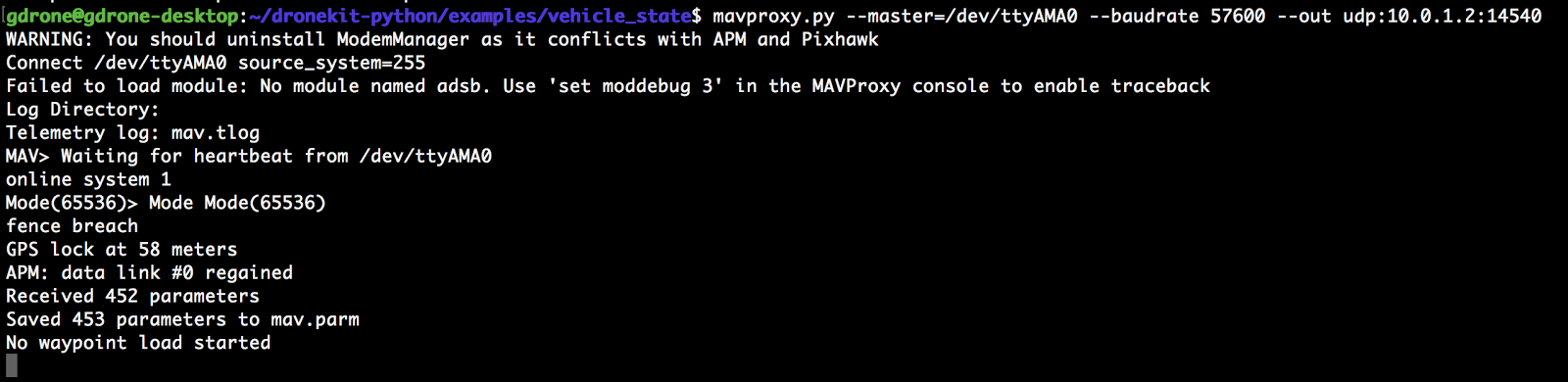
 mavproxy.py --master=/dev/ttyAMA0 --baudrate 57600 --out udp:10.0.1.2:14540
baudrate 는 아직 모르겠고 // gpio 핀을 이용하였으므로 /dev/ttyAMA0 라는 디바이스 할당에 out_UDP 는 내 컴퓨터가 할당 받은 IP를 적어서 넘겨주게 만들었다.

->MyCom

Listenning Port 는 위와 통일 되게 같은 포트 번호를 입력한다. ex) 14540
Target Hosts 는 라즈베리파이 가 할당 받은 ip 만 입력 하면 된다.  ex)10.0.1.16
--------------------------------------------------------------------------------------------------------------------------
Baud Rate
보 레이트 (Baud Rate) 는 초당 얼마나 많은 심볼(Symbol, 의미 있는 데이터 묶음을 전송할 수 있는가를 나타내는 말이다이는 이론적인 통신 단위로 초당 신호(Signal) 요소의 수 나타낸다.
만약 하나의 신호요소가 2비트로 구성되어 있는 경우라면 보는 BPS 의 반이 된다, 1보 동안 2비트가 전송된다일반적으로 신호를 1비트로 여긴다면 BPS 와 같은 단위가 된다.
심볼이란 말은 의미 있는 데이터 비트의 묶음이다일반적으로 시리얼 통신에서는 데이터 비트가 8-bit 를 사용하므로 이를 하나의 심볼이라고 이야기 할 수 있다.
1개의 symbol (또는 character) 는 8개의 bit 정보와 같다.
예를 들어, 2400 baud rate 를 갖는다는 말은 1초에 2400개의 의미 있는 심볼 즉 캐릭터를 송신할 수 있다는 이야기이다. 1초에 2400개의 ASCII 코드를 전송할 수 있다는 말로 이해할 수 있다.
--------------------------------------------------------------------------------------------------------------------------
Trouble issue

Traceback (most recent call last):
  File "basic.py", line 10, in <module>
    vehicle=connect(connection_string, wait_ready=True, baud=57600)
  File "/usr/local/lib/python2.7/dist-packages/dronekit/__init__.py", line 2827, in connect
    vehicle.initialize(rate=rate, heartbeat_timeout=heartbeat_timeout)
  File "/usr/local/lib/python2.7/dist-packages/dronekit/__init__.py", line 2100, in initialize
    raise APIException('Timeout in initializing connection.')
dronekit.APIException: Timeout in initializing connection.


2016년 12월 11일 일요일

Drone : Assembling


1.  230_racer airframe


2.  assembling with pixhawk

using a Qgroundcontrol -> basic setting


3. finish


how to connect 4in1_ESC with pixhawk

2016년 12월 8일 목요일

ROS : Install ROS on Raspberry pi 2 b+


 Install ROS on Raspberry pi 2 b+


Feature

RaspberryPI2_B+
OS : Ubuntu mate 16.04 lts. Xenial
ROS Version : Kinectic

need a ROS package

Git hub address :

For What :


1_ install Ubuntu mate 16.04 lts on Raspberry pi 2 B+

2_ install ROS-Kinetic

sudo sh -c 'echo "deb http://packages.ros.org/ros/ubuntu $(lsb_release -sc) main" > /etc/apt/sources.list.d/ros-latest.list'
sudo apt-key adv --keyserver hkp://ha.pool.sks-keyservers.net:80 --recv-key 0xB01FA116
sudo apt-get update
sudo apt-get install ros-kinetic-desktop
sudo rosdep init
rosdep update

sudo apt-get install python-rosinstall

echo "source /opt/ros/kinetic/setup.bash" >> ~/.bashrc
source ~/.bashrc
source /opt/ros/kinetic/setup.bash

mkdir -p ~/ros_catkin_ws/src
cd ~/ros_catkin_ws/src
catkin_init_workspace
 참고 : WikI ROS


QGroundControl 실행하는 데 오류가 뜬다.
Syntax error : "(" unexpected

bash 문제 일수 도 있는 데 아직 해결책을 찾지 못함. (9/ DEC)
3_ install px4_firmware


4_ Connect Pixhawk with Ras